
 site
site news
news contact
How to clone a EasyOS installation
This page explains how to clone an existing installation of
EasyOS. This has been requested many times.
Most recent is a request from Don, who maintains 16 identical computers, that he updated to Win11 from Win10; however, they are very slow, the HDD churning all the time. He installed EasyOS on one of them, configured a few things, and is very pleased with the snappy performance. He has requested help with cloning the same installation onto the other computers.
This new application, named EasyClone, will help.
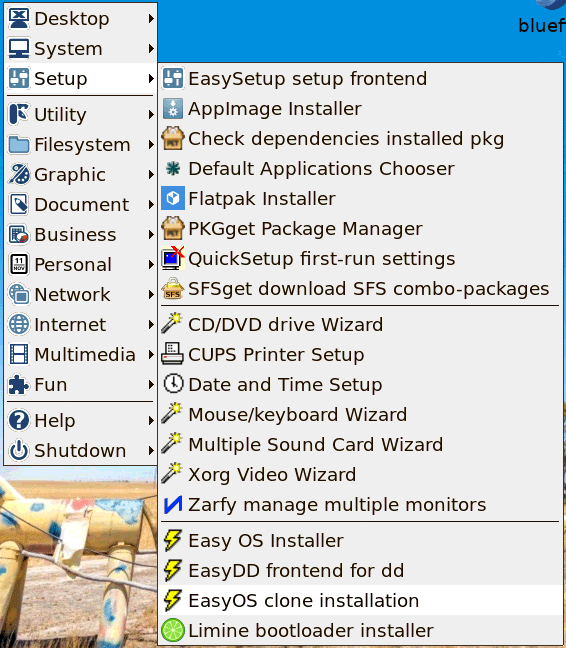
EasyOS version 7.2.4 or later is required. EasyClone is in the menu:
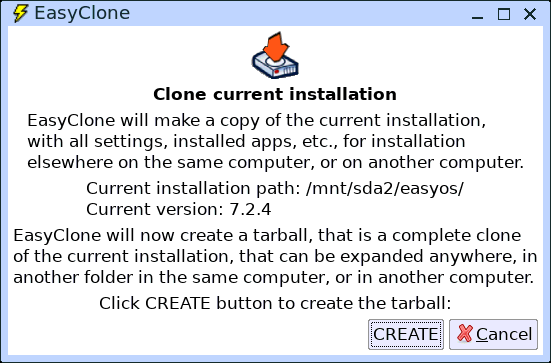
The next window introduces EasyClone:
However, before actually doing it, there needs to be some explanation:
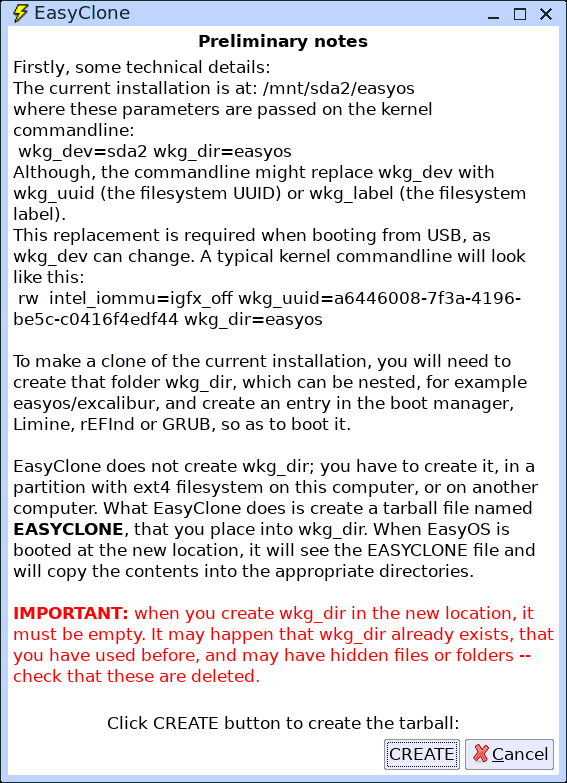
There are other web pages in easyos.org with instructions on installing a boot-manager. If there is already a boot-manager on the target PC, you will need to know how to edit it, to create a new entry. Now to perform the clone operation:
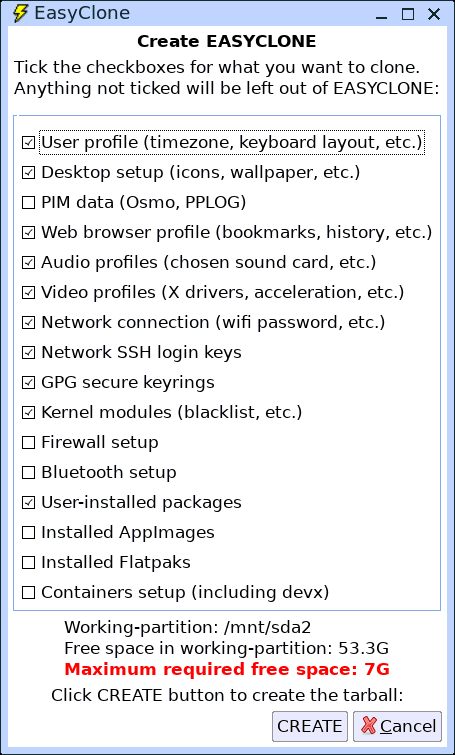
...recommend if uncertain, tick all of the checkboxes. That "7G"
is an estimate of the working space required by EasyClone in the
working-partition, if all checkboxes are ticked. Note that
"working-partition" means the partition in which the currently
running EasyOS is installed.
If you have used the containers, for example setup the "devx"
container to compile source code, or installed applications in one
of the other containers, ticking that last checkbox will cause all
of the containers to be cloned.
Finally:
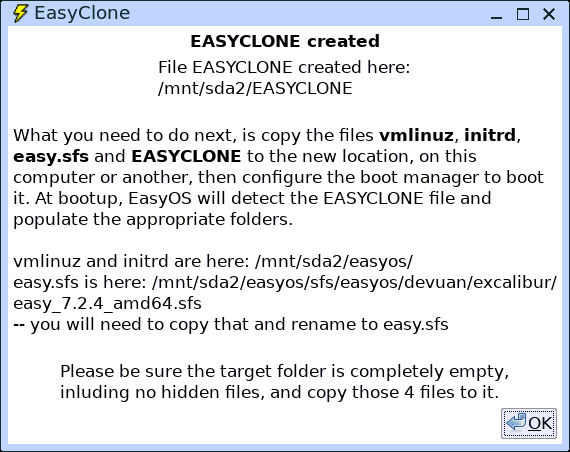
EasyOS is installed in a folder in a partition with ext4 filesystem. That's all it needs, just occupies that folder, and the rest of the partition can be used for anything else, for example an installation of Ubuntu or Debian.
You need to create that folder, then copy those four files into it, then create an entry in the boot-manager. Like this:
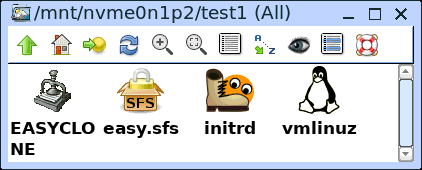
...in this example, a folder has been created in a partition of an NVME drive. That computer already has Limine boot-loader installed, so an entry was created in the 'limine.conf' file in the vfat esp (boot) partition, like this:
/EasyOS Excalibur TEST (partition nvme0n1p2, path test1)
    comment: EasyOS bootup
    protocol: linux
    resolution: 800x600
    kernel_cmdline: rw  intel_iommu=igfx_off wkg_uuid=a6446008-7f3a-4196-be5c-c0416f4edf44 wkg_dir=test1
    kernel_path: guid(cd4fe787-417e-4806-a16e-f63c360b135d):/test1/vmlinuz
    module_path: guid(cd4fe787-417e-4806-a16e-f63c360b135d):/test1/initrd
...note, that "intel_iommu=igfx_off" is there as it fixes video on some Intel GPUs. The wkg_uuid parameter was found by using the 'blkid' utility.
That's it bootup and the cloned installation will run.
At first bootup, it will behave as a first-bootup, and ask for a password to encrypt folders in the working-partition; thus, each clone can have a different password.
The important restriction in ext4 "fscrypt" encryption is that any folders to be encrypted, must be setup while still empty. Thus, after the human operator has entered a password, the folders are setup and then the startup script in the 'initrd' file will detect existence of the 'EASYCLONE' file and will extract its contents into the folders.
You will then be running a system that is the same as the the
original, or less-than if you didn't tick some of those
checkboxes.
Tags: install